
In a previous article, I showed how Android devices silently distribute a user’s ID to every app they open, sharing their data with data aggregators and data brokers by default. Apple devices do something similar, and this article walks you through how to disable the feature.
Before I get to the steps, I want to recognize and applaud Apple for taking a meaningfully different approach. As a lifelong green bubble who has spent countless hours researching privacy techniques, I was shocked to learn about the differences between the platforms while preparing this article. The first difference: Apple automatically opts-out its users from tracking features, requiring people to explicitly enable them. The second difference: once opted-in, your Apple devices’ license plate, the Identifier for Advertisers (“IDFA”), is still not distributed to apps by default. When an app wants access, it must explicitly ask you through a clear, standardized prompt. And when you do grant permission, Apple tells you which apps have it and lets you revoke it at any time. While there is certainly more nuance that ought to be added, this level of control and transparency should be the benchmark for every consumer device.
Here is how you can audit the permissions you’ve granted, opt out of distributing your IDFA entirely, and disable the settings that make it too easy for companies to profile you. Even on a platform that respects your privacy more than most, your data is still your valuable property that others should be paying you to access.
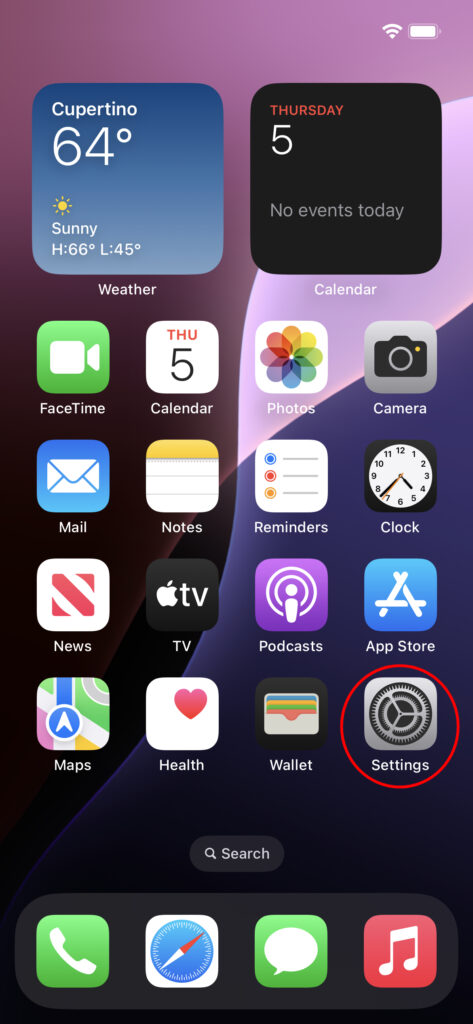
Step 1: Go to Settings
From your Home Screen, tap the Settings app (the gear icon).
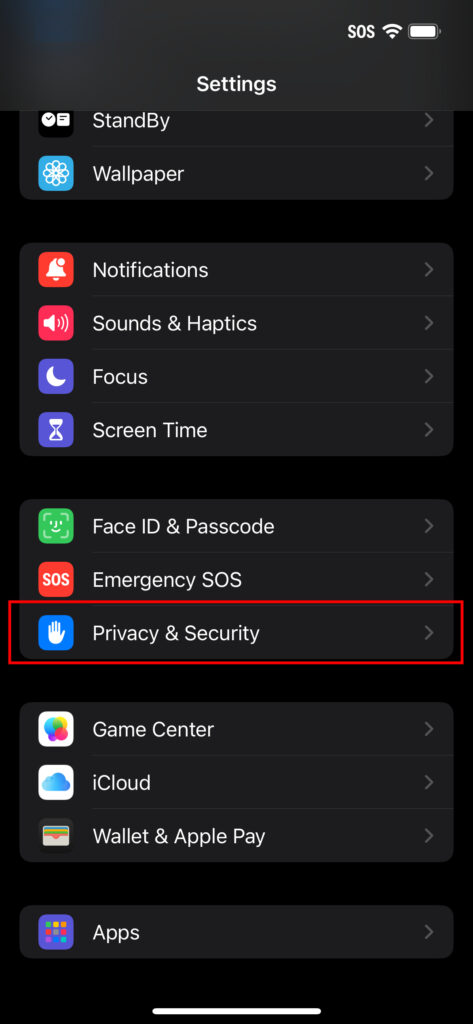
Step 2: Select Privacy & Security
Scroll down and tap Privacy & Security.
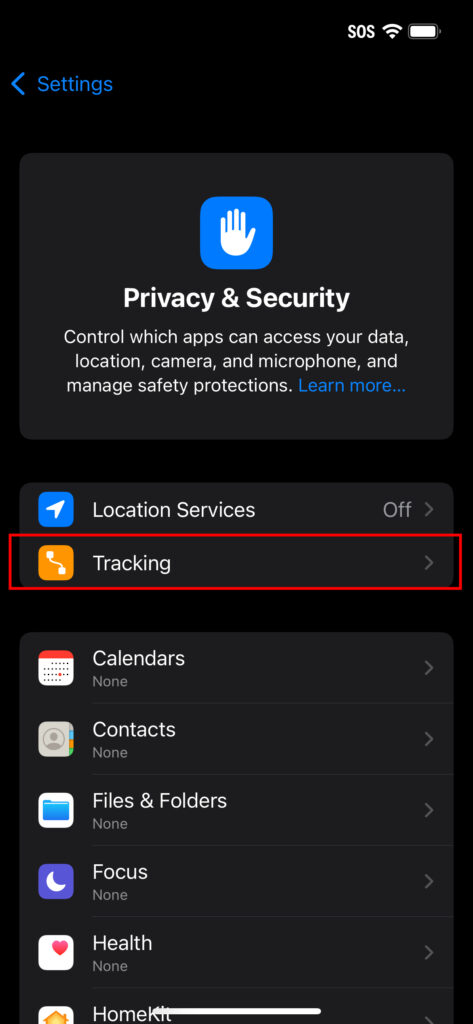
Step 3: Select Tracking
Near the top of the Privacy & Security menu, tap Tracking. This is where you control whether apps can access your IDFA.
Step 4: Disable the Allow Apps to Request to Track setting
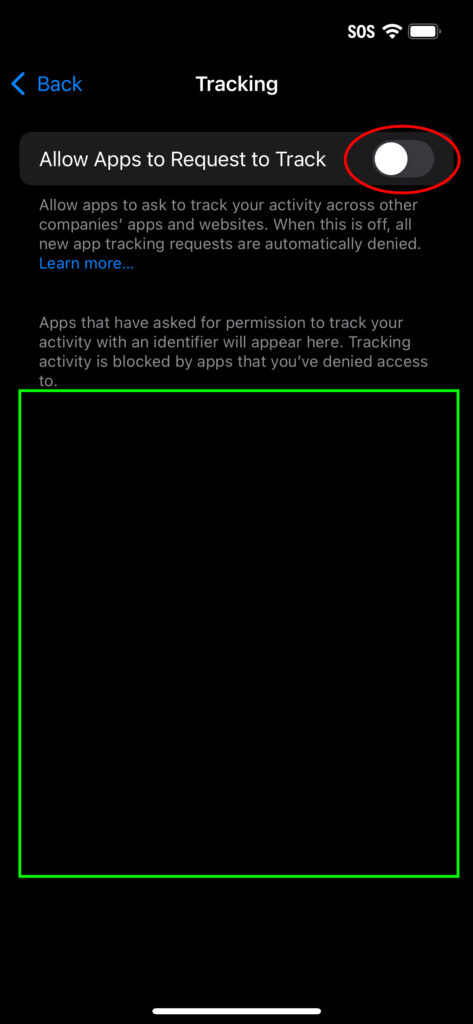
If the toggle next to Allow Apps to Request to Track is on, turn it off by tapping the toggle. This is the most important step. When this toggle is off, every app is automatically denied access to your IDFA, and apps won’t even bother asking. Any apps you previously granted permission to will also be revoked. If there are certain apps that you feel must have this information, the toggle should remain on, and the green box below will allow you to individually select the appropriate apps.
Step 5: Disable Apple’s Personalized Ads
Go back to the Privacy & Security menu in Step 2 and scroll to the bottom. Tap Apple Advertising.
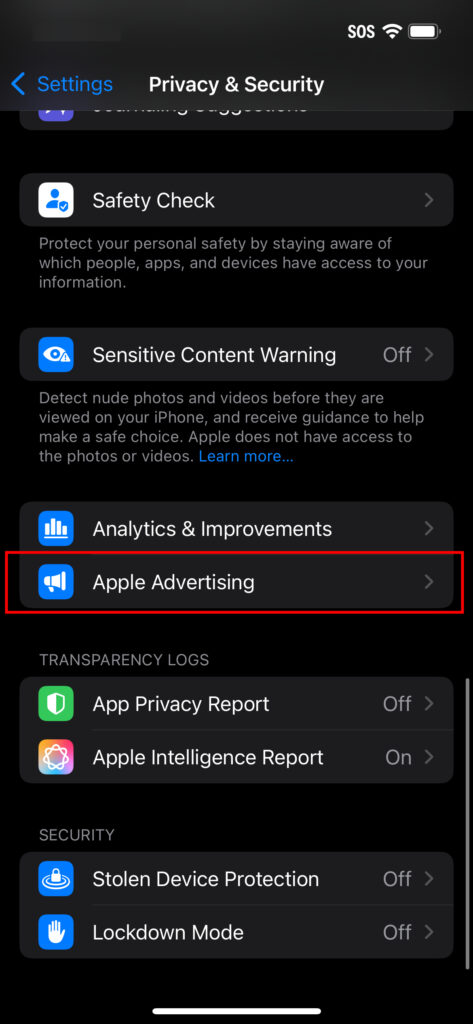
You will see a toggle for *Personalized Ads*. Turn it off by tapping the toggle.
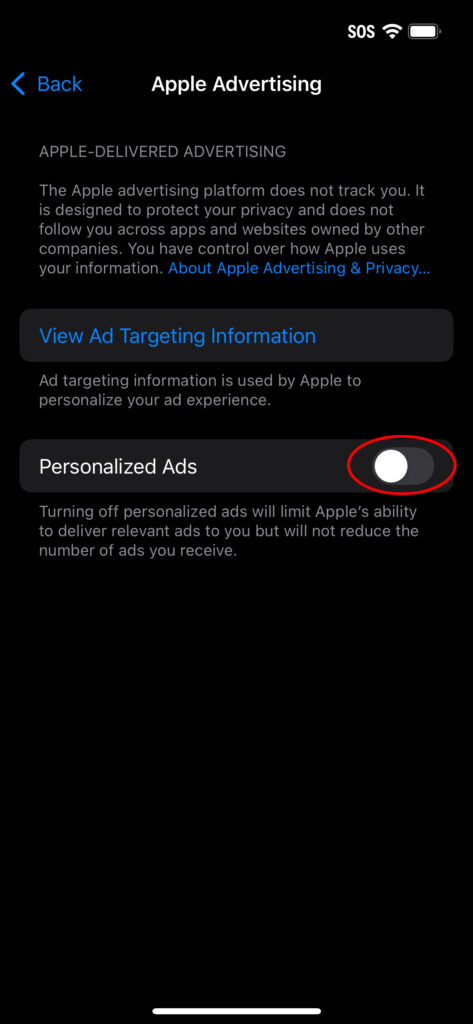
Apple’s own advertising system is separate from the third-party tracking that IDFA enables. Even with IDFA disabled, Apple still uses your App Store downloads, news reading habits, and other activity to serve you targeted ads in the App Store, Apple News, and Stocks. Apple says it doesn’t share this data with third parties, but it still builds a profile about you. My criticism is the same as with the IDFA: companies benefit by serving you relevant ads and should pay you for the privilege.
Step 6: Review Location Services
Return once more to the Privacy & Security menu and tap Location Services at the top.
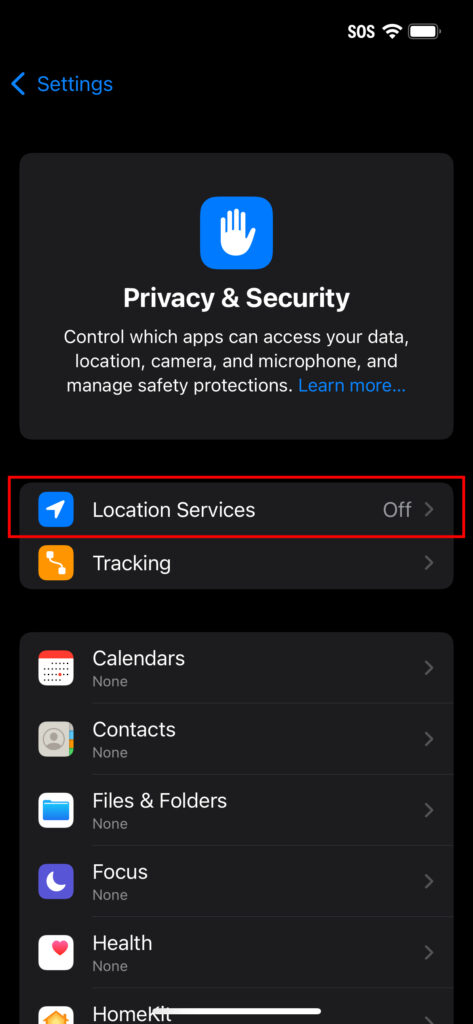
Location data is among the most valuable types of data collected from your device. Review each app listed and ask yourself: does this app really need my location?
For apps that do need it, consider changing the setting from *Always* to *While Using the App* to limit an app’s reach. Also consider turning off *Precise Location* for apps that don’t need pinpoint accuracy; a coarse location is enough for weather, news, and most other services, and it makes you harder to profile.
Congratulations, you protected your property and stopped it from being easily harvested! Apple has built stronger privacy defaults than most, but defaults alone aren’t enough when the entire data economy is designed to discreetly extract your property. Turning off the IDFA does not stop apps from identifying you in other creative ways. Device fingerprinting, location tracking, and other crafty “marketing analytics” still happen behind the scenes, outside of Apple’s control. These steps are a strong start, but they’re not the whole picture. That’s why I’m building My Data Union, which is a platform designed to help you take control of your data, protect it from silent extraction, and get paid when companies want access to it. We’re still in early development, and you can sign up below for early access and our weekly newsletter to follow along as we build it.

Pingback: What is “Personalization”? - My Data Union